 If your Android phone keeps the screen off when taking it away from your hear, the proximity sensor doesn't do its job properly.
The following solution worked consistently for me.
I've seen this recently with Mediatek-based phones produced by Alps (Elephone, Ulefone, ...) and it seems that many other phones are affected by a bug with the proximity sensor.
The symptom:
After a time of normal operation (phone turns the screen off during a call and restores it once away from your face) , the proximity sensor suddenly stops working and the screen remains off.
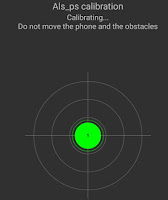
The normal corrective operation is to go to Display setting, and run the "Proximity Sensor Calibration". In many cases, the calibration fails with an error like "als ps calibration failed"
In most cases, the proximity sensor hardware is fine but somehow, the calibration values gets messed up at some stage, obviously because a software bug.
Note: the solution below does not prevent the problem from re-occurring ut provides a temporary solution until Mediatek comes up with a real bug fix.
First think to do: Verify that the Proximity Sensor works
This can be done via the the Engineering mode.
The right code to dial varies within the models. The one below is for the MTK 6752 phones:
*#*#3646633#*#*

Once in the Engineer Mode screen, go to Hardware Testing > Sensor > Light/Proximity Sensor > PS Calibration.
Although this different calibration screen would seem like a alternative to the main one, it didn't fix any problem back in Android. At least you can see the "PS" value changing is real time by waving your hand over it: that means the sensor is ok.
Now try this workaround:
The method below basically consist in ... doing the opposite of the on-screen instructions!
You may need to re-try a few times, but I now manage to have it working consistently within maximum 3 attempts.First of all, go to the Proximity Sensor Calibration in the Display settings:

Step #1, "Retrieving effective parameters":
What the instructions say: "remove objects in front of distance sensor"
What you should do: Keep it well covered during that phase (while it counts from 1 to 3).
Covering and uncovering the screen a few times during that phase may also work.

Step #2, Calibrating...
What the instructions say: "place objects in front of the distance sensor"What you should do: Don't cover it.

If all goes well, the screen should show a countdown from 3 to 1, which indicates that the calibration process succeeded.
The last screen allows to test the brightness varying with proximity.
Further sensor tests can be done with apps like CPU X or Phone Tester.

The phone screen should now behave normally during phone calls...at least for a while...

