Showing posts with label H502W. Show all posts

Firmware v6.0 for "MayGion" H.264

Firmware v6.0 for "MayGion" H.264
The latest firmware from Maygion brings various improvements and a special attention to non-IE users.


 The changelog for the v.6.0 update from Maygion is as follow:

  • Full support Chrome/Firefox on Windows,have full functions as in IE browser
  • Improved ocx.please update both app.bin&www.bin,then download ocx and reinstall
  • Add VOD for sd record files.
  • Add support for noip.com ddns
  • Add DST(daylight save time) option for NTP
  • Adjust video bitrate according to fps,lower fps will get small bitstream(with lower video quality)
  • Show RAM and flash space in system info page
  • Improved http server
  • Small improvement for IPCamTool.exe


  •  The main change is the integration of all the controls normally reserved to Internet Explorer into Chrome and  Firefox via the Windows Media PLayer Extension for HTML5.

    The OCX has also been updated and needs to be re-installed.
    Read More

    Hacking the Dericam H502W

    Hacking the Dericam H502W
    The Maygion H264 IP Camera is a very open device with great customization potential.
    This article contains some examples of hacks that enable telnet, load an alternate ftp daemon, extract
    information, etc...
    If keeping the camera under guarantee is no longer a concern for you, please read on... (-:


    Important Notice: 
    Before performing any firmware change, make a backup of firmware files, including the board.dat file, 
    and make yourself familiar with recovery options. Proceed at your own risks, or don't...


    This post is based on the information found in macmpi's post on forum.hardware.fr

    Basics:
    The /app folder contains typically 3 files loaded when the camera is powered on:
    cs -> the main firmware application file
    cs.def.ini -> the default config file
    cs.ini -> the current config file loaded by cs

    A universal way to talk to the camera is to replace its cs file with another one containing a valid script, such as the following that loads the telnetd daemon:

    #!/bin/sh
    cp /etc_ro/rcS /tmp/eye/app/.cd /bintelnetd& 
    Once a terminal access is possible via telnet, the possibilities are endless: change the services loading at startup (including telnetd itself) via the file /etc_ro/rcS, use a different ftp deamon (MayGion unlimited fd, or restricted ftpd)


    Hackmaster...

    The hacks below are an extension of this simple idea.

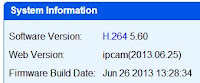
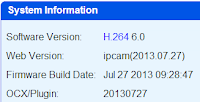
    The files must be first renamed as app.bin to be installed like normal application updates from the IP Camera interface. Each file has a specific purpose and the System Information panel will show which ones are active. 
    http://goo.gl/9K1ge 

    inject.bin: This is the "Hackmaster" module, which opens the camera to further hacking via the other files below. It is based on fw v.5.60 but will remain active after a traditional firmware update. It is reversible thanks to a clean-up file also provided.  

    tnt.bin: This enable the telnet daemon. 

    bbx.bin: Installs the latest full Busybox which provides a more completes set of linux commands. It requires an Internet access to work. Check the log under /tmp to verify if the installation was successful.

    ocx.bin: Removes the ocx2.exe file from /www (saving 600KB of space), and provides an Internet access to this file instead. 

    mSD.bin: Mounts the SD Card for access via FTP (e.g. ftp://user:pass@IP/app/SD). The status of the SD mount is logged under /tmp. 

    ftM.bin: Enables the unrestricted MayGion FTP daemon (login: MayGion, password: maygion.com). 

    ftB.bin: Enables the basic FTP daemon which uses the admin login

    log.bin: Generates a log file in /app. Can be helpful for troubleshooting. Since it's only occasionaly needed, it will self-destruct on restart. 

    no_hack.bin: Removes all the hacks but leave the enabler intact (i.e. Hackmaster). 

    clean-up.bin: Cleans up all traces of hacks (including the Hackmaster), and restores the camera in its normal state. 

    The HackMaster files can also be obtained from the original article: Forum.hardware.fr


    Read More

    MayGion H264 IPC: A look at the new release

    MayGion H264 IPC: A look at the new release

    Since the first release of the Maygion H.264 IP Camera in 2012, there's been a lot of progress made both on the software and the hardware side.

    While the price didn't change, the value has increased...


    ... until you're dead or I find someone better (Starship Trooper - 1997)
    I've accumulated many different IP Cameras over time, and their location in my house reflects their rank (best cameras for the most important rooms).

    The Maygion H.264 (aka H502W, WIP604MW) pushed away the other models to become the full-time guardian of my living room, making it the de-facto Nr.1.

    When I stated above that the price didn't change, it's not completely true:
    From an E.U. perspective, It ends up cheaper buying from UK (~80€ Tax & Shipping incl.) than from China (~100€ with shipping and customs duty paid).  The delivery time and effective product guarantee (how much are you willing to pay to ship it back to China?) are also factors to consider.

    The LED ring sensor is now properly
    shielded to prevent Night/Day mode
    switching problem.
    My first, 2012, unit had basic features and the famous Night/Day mode switch problem, partly caused by a flaw in the LED ring itself. The manufacturer resolved the issue now and there's no need to tweak the settings or open the camera anymore.
    Six month and as many firmware updates later, the list of features has increased, with more languages and the addition of P2P and ONVIF protocol support (that I still consider as in progress though)

    My very first action with this new IPC was to use the url http://192.168.1.111:81/board.dat in order to backup the precious license file. The camera came in version 05.53 with the OEM user interface.

    This interface is very easy to customize and some distributors provide their own User Interface. Dericam download section has one and also some interesting content like the updated Maygion repair tool.

    P2P
    There's a label on the bottom of the camera with an unique DDNS url and userid. The device is already set for this DDNS and can directly be accessed from the Internet without further struggling with your router.
    The QR code at the base of the camera can be scanned from iPhone apps like P2P Master (Android version just out!) to insert the device information directly.

    ONVIF

    With ONVIF standard, an IP Camera client does not need to keep track of thousands of models, just one Onvif "brand" that will work for any compliant  camera.
    It's not yet fully implemented and works partially in Synology's Surveillance Station. Something to follow closely.


    The CD included in the box contains the IPCamTool to locate and configure the camera on the network
    The viewer utility, "Master", regroups the same range of functions as the ActiveX web interface but in a slightly more convenient interface in my opinion.

    Unleashed potential ?
    Still no preset positions: 
    Despite all the software improvements and the presence of html pages preset.htm inside the camera, there's still no way to define preset positions or video masks (videomask.htm) and I can only think of some hardware limitation for such common features to be still absent today.

    SSL, one day? Some other inside content suggest that the camera would be able to support SSL, but all this could also just be part of a common framework and reserved for higher grade or future models.

    Conclusion:
    Despite lacking of some common features like preset positions and video area masking, the Dericam H502W is a nice and solid IP Camera, delivering a superb image quality and constantly improved by means of firmware updates. It's one of the first in that price range to adopt the ONVIF protocol and a dream come true for hackers (the hobbyist kind of hacker, I thought I'd need to clarify...)


    Many thanks to Microsat.co.uk for providing me with the new Maygion H.264 reviewed here 
    as well as for all the help and information given in the last few months!


    Please note: The unit reviewed here is a OEM, non-branded H.264 IP Camera, which software is developed by Maygion. It is otherwise sold by Dericam  as H502W, by Cybernova  as WIP604MW, by Eyesight as ES-IP902W, by Chinavasion asCVL-I234-2GEN, by Anxin as HW-M1007RNBCT... .

    Read More

    "Invalid License File" message after a firmware update

    "Invalid License File" message after a firmware update
    Several users of the Dericam H502W (Cybernova WIP604MW, and equivalent...) have reported the appearance of an "Invalid License File" warning in their System Information page after a firmware update.
    While the exact cause is still undetermined, some precaution should be taken before applying a new firmware.

    Prior to any change to the firmware of your H.264 IP Camera, you should  make a backup of its board.dat file, which can be extracted by visiting your IP Camera with the url: http://<youIPCurl>/board.dat
    This constitutes your license file in case you end up with a Invalid License File warning. It could then be re-installed via the auth.htm page (you should take a snapshot of your own page also, while all is ok). Only the manufacturer can provide a new valid license file. The board.dat is unique to each device so it won't help to upload one from someone else!


    The Dericam, Cybernova and other Maygion-based H.264 IP Cameras are assigned with a unique Hardware Identification (HID), a User ID (for the newer ones, adding P2P support) and a free DDNS ID (all visible in that auth.htm page mentionned above).
    Apparently, a compound of this data is challenged against the encrypted board.dat file, and any mismatch results in an invalid license situation.
    In theory all this information burned-in the camera at factory should not be affected by firmware upgrade and not easy to damage even through FTP access, but several cases have been reported already, all following update from very official firmware. 

    This situation is known to cause the following problems:
    - It prevents the IPC to use the P2P function
    - It makes the IPC reboot at interval of 10 minutes (cs.log file in /app would show [reboot for invalid auth file])

    Why this?
    The cause is not clear but I suspect the older production of this IP Camera to be particularly affected once they get updated with a certain firmware version. The introduction of P2P maybe changed the way the license file is validated. I'll update this section if I ever get more information.

    Read More

    Firmware v5.53 for "MayGion" H.264 (Dericam, Cybernova, ...)

    Firmware v5.53 for "MayGion" H.264 (Dericam, Cybernova, ...)
    For once, this update was not published by Cybernova but directly posted on MayGion web site.
    It brings further improvements to the ONVIF compatibility with special attention to Synology DSM 4.2.


    Important Notice: 
    Before performing any firmware update, read this post to learn about potential problems that can result from this operation as well as how to backup the board.dat file. 

    This update, published directly on MayGion web site, allowed me to use the camera with Surveillance Station 6 for the first time. There's no Pan and Tilt control yet, but hopefully this will come later.

    The mkbin tool is included in the package:
    This tool was in fact made available by Maygion in 2010 and allows to unpack the bin file, and to pack customized ones.

    Just drag and drop a bin file to the mkbin app to unpack. These extracted files are those that typically can be  uploaded via FTP to their corresponding www or app folders.


    I take this opportunity to praise the great investigation work done by macmpi on the hardware.fr forum!
    If you don't read French, please use a page translator like the one included with Chrome and read the second post on that thread to know more about the customization potential of this camera. It's worth reading, ...and it's only the tip of the iceberg...!


    Read More

    Adding DIY drivers for Maygion H.264 to Synology Surveillance Station

    Adding DIY drivers for Maygion H.264 to Synology Surveillance Station
    The current ONVIF implementation in Dericam H502W/Cybernova WIP604MW IP Cameras does not allow High Resolution and Pan & Tilt control in Synology Surveillance Station.

    This method initialy published on the Polish web site, webcam4.eu, will  bring some improvement on that regard.
    In short:
    The Synology Surveillance Station stores a list of IP Cameras in the camera_model.conf (PTZ configuration) file located under
    /volume1/@appstore/SurveillanceStation/conf

    This files contains references to camera definition files (drivers) located in /volume1/@appstore/SurveillanceStation/conf/camera_support/

    I've grouped the necessary files in this archive: MaygionHD4Synology.zip
    Content:
    - BTICAM.conf, BTI_camera_model.conf (to rename camera_model.conf)
    - Maygion.conf, camera_model.conf (just uses the more generic Maygion name instead of BTICAM)
    - camera_model - Backup.conf (the original Synology file unchanged)
    - commands.txt (sample of commands to use for copying files from a Telnet/SSH terminal)

    With the files placed in a folder of the NAS (here ExternalShare for the example), the commands to copy the files in the right locations would look like this:
    cp -f /volume1/ExternalShare/camera_model.conf /volume1/@appstore/SurveillanceStation/conf
    cp -f /volume1/ExternalShare/Maygion.conf /volume1/@appstore/SurveillanceStation/conf/camera_support/

    I recommend that you always backup the original camera_model.conf file first.


    April 2014 Update: The latest device pack for Surveillance Station (6.3-3309) includes the H502W model under the Dericam brand, so no more need to use the method above.


    Read More

    Onvif Firmware for Cybernova WIP604MW

    Onvif Firmware for Cybernova WIP604MW


    This official 05.39 update from CyberNova is a first step to bring the ONVIF compliance to the WIP604MW, well...sort of...


    Before you jump on it, let me moderate your enthusiasm by saying that I could not get the camera to work with Synology Surveillance Station nor Hit-Mob's IP Camera Viewer.

    I have one of the oldest hardware version of this camera, so maybe this is why my tests failed...


    Strangely though, the Onvif device manager does find the camera all right and gets the picture back from it.

    Inline images 3


    Important Notice: 
    Before performing any firmware update, read this post to learn about potential problems that can result from this operation as well as how to backup the board.dat file. 


    Download locations:
    Cybernova: Firmware0539 , mirror


    Dericam: Firmware03 (also v.05.39 but Dericam-branded)
    Official changelog from Dericam:

    1.Brand new outlook of Dericam webpage.
    2.Fix the OSD bug,you can control the time display now.
    3.Add the Onvif function,you can connect the H502W to NVR for record.(Such as Synology NVR).

    Note: according to various tests, the Dericam release contains a bug whereas a logout will not effectively close the connection, still allowing direct access to camera via manually built urls like /sysinfo.xml
    (more info: see French hardware.fr forum)


    Read More

    Recovering a Dericam/CyberNova HD IP Camera

    Recovering a Dericam/CyberNova HD IP Camera
    This article applies to Dericam H502W, Cybernova WIP604MW and compatible models.
    Although they're hard to brick, some operations may sometimes produce similar symptoms.
    While your camera still works, do this...
    A wise precaution to be ready in case of trouble is to perform the following backup of the camera:
    - Save your settings
      In Control Panel > Device Settings, click the Download button in front of Backup
    - Save your firmware via FTP
      With a FTP client like Filezilla, download the www and app folders from your camera.
    That set of files will be your best recovery option if something ever goes wrong.
    - Last but not least: make a backup of your board.dat (aka "license file") by using the url
    http://<cameraIP>/board.dat 
    Read this post to learn more about this important file.

    Sometimes, the camera just looks bricked, check for port 81!
    When a firmware upgrade is performed, it sometimes reset the camera to its default with may become inaccessible through its usual URL.
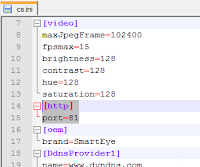
    Remember that factory default for HTTP port on that device is not 80 but 81.
    The "Master" IP Camera utility remains the easiest way to find the camera, but checking the router's table for recent additions or using a network scanner like Overlook's Fing are valid methods. Consider also that the camera may become invisible to you if its default subnet was different than yours.
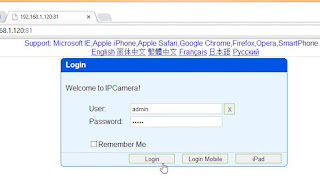

    The default password and url are printed on the sticker on the base of the camera. The admin password  is generally just "admin".


    If the camera can't be reached from a browser...

    If there's no HTTP service running, generally the FTP service is still up. Then a backup made previously or obtained from someone else (always prefer the first method!) can be uploaded to the camera.
    The default FTP account can be MayGion with password maygion.com or admin/admin, depending the versions.

    Once the www and app folders have been fully restored, unplug the power from the device and re-plug it.
    Upon rebooting, the IP Camera Tool should see your camera. If it was restored from a personal backup,  your settings and your admin password should be back. If it came from another source, it may contain some customization (port, password, ...). You can restore the factory setting by keeping the Reset button pressed for more than 5 seconds. While there was a hole for a reset button at the bottom of my camera, it was in fact located at the back, below the SD card slot.

    As a precaution, once you recovered a functional camera via FTP, it would be wise to apply an normal update (bin files) from the camera Control Panel > Update Software (app.bin) and Update WebPage (www.bin), and then reset the settings using the button in Device Settings to ensure a clean start.

    Where to get the recovery files
    As suggested earlier, a personal backup is your safest option. If there's none, someone can provide you with his files. That's what I do below (-:

    I made a clean Recovery Pack (+ mirror) containing:


    File to upload via FTP (all default settings)
    Firmware files for normal update from the UI.
    Instructions document (howTo.txt)
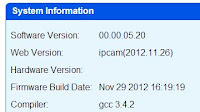
    All based on the official update 05.20 published by CyberNova.

    Note: Due to antivirus alerts (false positive) they cause, the following files have been separated from the main recovery pack:
    ocx2.exe (normally located under the www folder) and IPCamTool.exe (IP Camera finder)
    They can be downloaded separately (+ mirror)


    What if nothing above worked ?
    In the cases above, the  camera was never really bricked, and no matter how hard I tried, I could not yet make mine unrecoverable. If nothing above worked, you may then have a truly bricked device and should contact the manufacturer directly. Your luck is that both Cybernova and Dericam do reply to emails! Tried and tested both.

    There's also now an updated version for Maygion repair tool on Dericam web site.

    Read More

    Firmware 00.00.05.28

    Firmware 00.00.05.28

    This update is not from CyberNova, neither from Dericam (who didn't publish any firmware for the H502W yet), but has been successfully tested on my WIP604MW.
    It brings a few interesting changes actually...


    The 05.28 release is the first update for 2013. There's still no option for preset positions but some nice improvements still:

    - An OSD settings section has also been added with option to "Show Time". I'm not convinced the option itself has any effect, but an OSD always shows in the MJPEG resolutions (with time regardless of the option), an no OSD ever in h.264 resolutions.


    - The camera can now work with P2P for those allergic to IP settings. The latest Master IP Camera client (also here) takes advantage of it.


    - If you followed the previous episode about the light sensor problem, the switchSeconds parameter is now supported. It  adds a delay for the activation/deactivation of the IR LED. Along with the trick documented earlier, it might conclude the incident for good. 

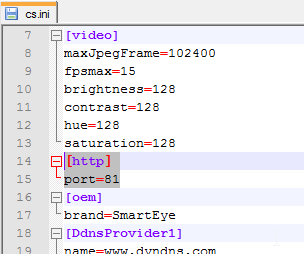
    The file cs.def.ini in side the app folder contains the following section:
    [board/irled]
    automode=1
    open=0
    switchSeconds=60

    That section can be copied inside cs.ini which normally only contains the 2 first lines of that same [board/irled] section. Hopefully, the switchSeconds will effectively forbid the camera from switching its LED before the defined delay. 


    Important Notice: 
    Before performing any firmware update, read this post to learn about potential problems that can result from this operation as well as how to backup the board.dat file. 


    Since the firmware is not available from the usual providers, I've made a share on my Google Drive for it:
    Download location: Firmware0528
    Usual precautions applies: don't flash through wireless, know what you're doing, don't blame me if..., blah, blah...
    Update: see this article if you think that you bricked your camera.

    As advertised on MayGion.com, a free IP Master client is available on Apple store (Android equivalent is available from CyberNova but still give some FC's).

    But the best is yet to come: ONVIF compliance is planned for a future release!


    Big thanks to Microsat for providing me with the files and all the information!


    Read More

    Quick fix for light sensor problem

    Quick fix for light sensor problem
    A common problem seen in Dericam H502W and Cybernova WIP604MW is the LED turning on and off continuously at times. In my initial review, I suggested that isolating the light sensor with a tube of black tape would help. There's now also an updated version of the LED ring that does just that.

    The cause of the IP Camera ticking like a metronome is mainly due to the light sensor not being isolated from the light emitted by its nearby IR LED's. The reviewed led ring version (left on the picture) comes with a light sensor wrapped in a black plastic shield and also equipped with a filter. 


    Fitting:

    All the actions below are done with the camera un-plugged from power of course. The whole operation won't exceed 15 minutes.

    The head of the camera can be simply opened by removing the 4 screws located on the bottom.

    It might be tempting to just unsnap the black plastic frame from the white cover with risk of cracking it, so prefer the softer way below:

    Next, there are 4 more screws to remove in order to detach the lens board and give way to the LED ring. It's important to keep a note of the lens board position and also of the connectors assignments to avoid re-assembling it all upside down later on. Use the picture below as a guide.

    Once the glue points are removed, the LED ring will come free. 


    Now just fit in the new LED ring. Do not neglect from gluing it otherwise any soft pressure on the LED's will push the whole ring back inside the casing. Pay attention to the lens board position and connectors assignments.


    With the new LED ring in place, the clicking episodes should be -if not eliminated- greatly reduced.
    You may still experiment some at times but of much shorter duration.

    Obtaining an updated LED ring:

    The LED ring can be purchased for ~6€ directly on eBay @ Andy.lig

    I have contacted both Dericam and Cybernova and their current production already comes with the fix.

    My special thanks to Lennard @ ipcam-shop.nl who made me aware of that fix!


    Update: see this new post for further resolution information.


    Read More

    CyberNova WIP604MW Firmware 00.00.05.20

    CyberNova WIP604MW Firmware 00.00.05.20
    And yet another firmware from CyberNova. The version 05.20 brings a user interface localized in French.
    This latest update include a reviewed french file for the user interface.

    Alternatively it is very simple to add / update a language to your camera:

    Take the updated file, like this lang_french.js and upload it to www folder via FTP

    Verify the result by accessing the login page of the camera (no reboot necessary)
    If the French language does not appear in the language list of the login page,
    ensure that lang.js (also in www) contains the following line at the end, and that it's not commented:
    includejs("lang_french.js")
    Read More